 Download
Internet Proxy Server Installation and Usage
An Internet proxy server means a proxy server which is available for clients over Internet. With CCProxy - A Windows OS based, easy-to-use and free proxy server software, you can build your own Internet proxy server easily and efficiently.
Step 1 - Internet Proxy Server Installation and Configuration
1. Download the latest version of CCProxy (V7.2) from the download center.
2. Install CCProxy on a computer which can access Internet directly. Just keep clicking "Next" to finish the installation.
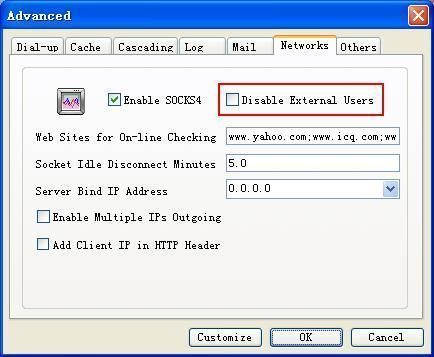
3. "Options" -> "Advanced" -> "Networks", click to not select the "Disable External Users" check box, then keep clicking the "OK" button to save.
4. Keep all the other options of CCProxy as the default settings.
Step 2 - Internet Proxy Server Authentication Management
After set up proxy server with CCProxy, you can specify the authentication type for your Internet proxy server in the "Account Manager" dialog box of CCProxy as bellow.
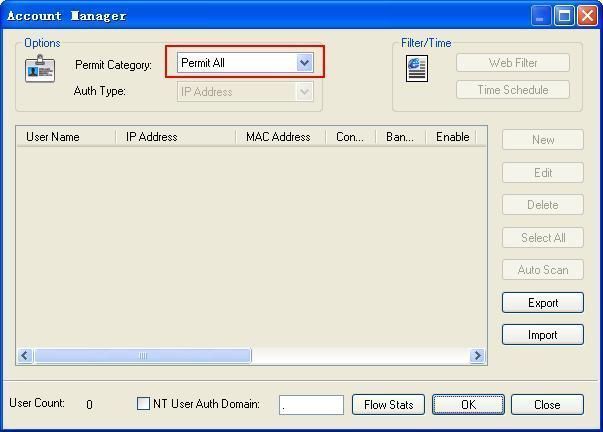
There are 2 authentication types for you to select:
Anonymous - please select "Permit All" for "Permit Category" as Figure 3.
Authentication required - please select "Permit Only" for "Permit Category" and then select proper "Auth Type" as you wish (Figure 4).
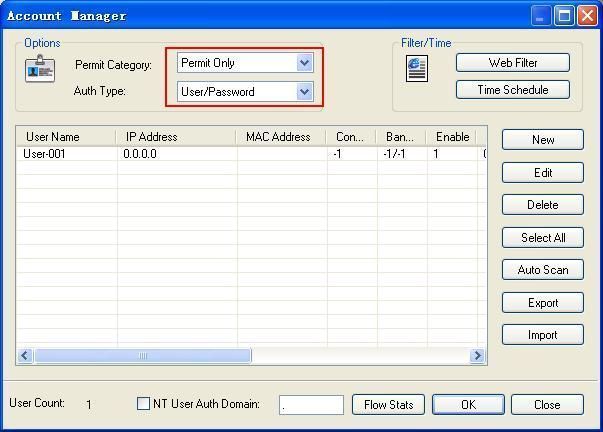
CCProxy supports several authentication types such as "IP Address", "MAC Address", "User/Password" and some combined auth types as you can see in the "Account Manager" dialog box. For an Internet proxy server, we recommend "User/Password" authentication type. It's difficult for CCProxy to get exactly the clients' IP address and MAC address over Internet because of the complex network conditions such as various routers, switches, firewalls, antivirus softwares and so on.
Step 3 - Network Settings and Obtaining the Internet IP Address of Your Internet Proxy Server
If the CCProxy server is accessable for Internet clients, please ignore this step.
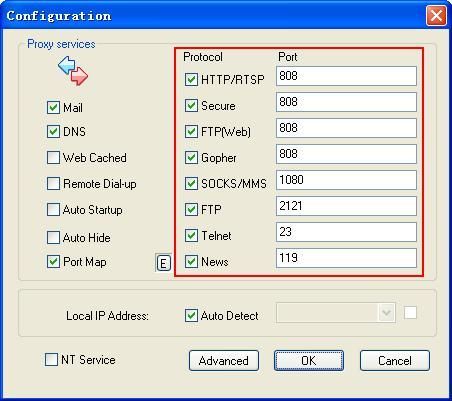
If it's behind a router/firewall, you need to open a hole in the router/firewall and map port 808 and 1080 to the computer on which CCProxy has been located. As a default setting, CCProxy uses port 808 and 1080 for HTTP and SOCKS proxy, these two protocols are mostly used. If you want to use other proxy protocol such as FTP and News, you also need to map corresponding ports to the CCProxy server. Figure 5 shows the default ports CCProxy uses.
Before next step, you also need to obtain the Internet proxy server address, it should be an Internet IP address but not LAN IP address. Just google for "IP query" or "query IP" or some other similar keywords and open the website google has listed for you on your proxy server. Then you can get the current Internet IP address of this Internet proxy server for free.
Step 4 - Make Proxy Server Settings in The Browser Such as IE, Firefox and so on
Let's say your Internet proxy server's Internet IP address is "208.113.200.5". Now you and your friends can make proxy settings in the browser as bellow to surf with this proxy server.
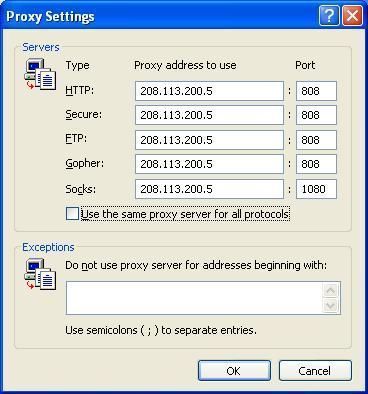
If you have selected "Permit All" for "Permit Category" as Figure 3, client computers can surf directly via this proxy server. If you have selected "Permit Only" for "Permit Category" and "User/Password" for "Auth Type", it will require username and password when you surf via this proxy server.
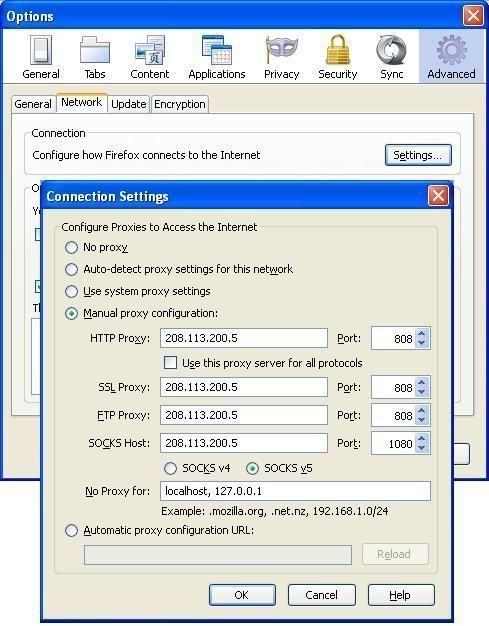
Besides IE and Firefox, maybe you also need to make proxy settings for some other network applications such as MSN Messenger, Skype, CuteFTP etc. We have more instructions for you - how to proxy server for various network applications.
Related:
