 Download
Installation of CCProxy
Step 1 - LAN networks configuration
Normally, the clients and server are connected with A Hub, Wireless Hub, Switch or Router. The network protocol between the server and clients is TCP/IP. Therefore both the server and the clients have an IP address. The server IP address is static and fixed. The clients IP address can be fixed or dynamic which is obtained through DHCP. CCProxy only requires that the clients can ping through the server IP address. We know that the server may have multiple IP addresses, but must have one that is used to connect with other LAN clients. The IP address that is used to connect with the other LAN client is called the proxy server address. We generally assumed this to be 192.168.0.1.
Note: CCProxy only supports IPv4 IPs and doesnot support using IPv6.
If the clients and server have not yet been setup to have a connection, we recommend allocate IP addresses like this at below:
| IP address | mask | gateway | DNS | |
| Server | 192.168.0.1 | 255.255.255.0 | empty | empty |
| Client1 | 192.168.0.2 | 255.255.255.0 | 192.168.0.1 | 192.168.0.1 |
| Client2 | 192.168.0.3 | 255.255.255.0 | 192.168.0.1 | 192.168.0.1 |
| ... | ... | ... | ... | ... |
| Client99 | 192.168.0.100 | 255.255.255.0 | 192.168.0.1 | 192.168.0.1 |
How to detect whether ping Requests are transferring through between the clients and server? At the client, in the "start" menu -> "run" -> "cmd", assuming that the server IP is 192.168.0.1, in the command line, to type "ping 192.168.0.1" then press return. If the result is similar to that at below, it means the client is connected to the server successfully.
Pinging 192.168.0.1 with 32 bytes of data: Reply from 192.168.0.1: bytes=32 time=2ms TTL=150 Reply from 192.168.0.1: bytes=32 time=2ms TTL=150 Reply from 192.168.0.1: bytes=32 time=7ms TTL=150 Reply from 192.168.0.1: bytes=32 time=7ms TTL=150 Ping statistics for 192.168.0.1: Packets: Sent = 4, Received = 4, Lost = 0 (0% loss), Approximate round trip times in milli-seconds: Minimum = 2ms, Maximum = 7ms, Average = 4ms |
If the result is like that at below, it means the client cannot connect to the server.
Pinging 192.168.0.1 with 32 bytes of data: Request timed out. Request timed out. Request timed out. Request timed out. Ping statistics for 192.168.0.1: Packets: Sent = 4, Received = 0, Lost = 4 (100% loss), |
Step 2 - Internet connection configuration
We know that there are many ways of connecting to the Internet, which are for example, ADSL, optical fiber, satellite, broadband etc. CCProxy is not concerned about the manner in which the Internet connection is established, as long as the server is successful connected to the Internet.
The simplest way to check the server can access the Internet is to input a web site address into the browser and see if the machine is able to access the web pages.
Users frequently mentioned single and dual NIC. In fact, the CCProxy is not concerned with hardware equipment. Both single and multi-NIC cards are supported and there are no special settings.
Special mention is that if the clients have been able to share the Internet, such as through the router, and hope to use the CCProxy to manage and control the clients' Internet access. You might need to do some changes on your hardware.
For example:
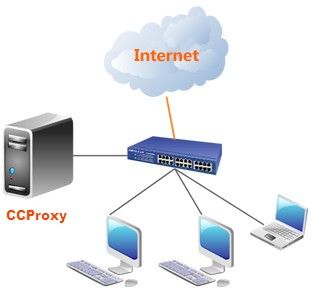
In this case, the clients can access the Internet directly with the Routers bypass proxy server. That's to say, CCProxy cannot control the clients. We need to isolate the client from Internet and force clients to access the Internet via the proxy server.
We have two methods to realize this.
Method 1:
Add one NIC card on the server and change the LAN networks as:
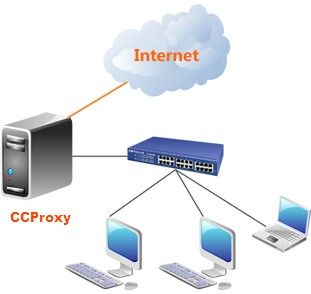
Method 2:
Configure the NAT or route settings in the router and block all LAN IP address accessing the Internet directly except the server IP address. Only some advanced routers have this function. Please do this with the router's administrator.
Note: CCProxy uses local IP addresses and not Public IP address to relay traffic. So, if you have multiple internet connection then you need to use multiple router and NIC on server to use the internet traffic through them.
Step 3 - Install CCProxy on the Server
- Suppose the server IP address in the LAN is 192.168.0.1, and then 192.168.0.1 is the proxy server address.
- You can download CCProxy here. Run ccproxysetup.exe and follow the on-screen instructions to install CCProxy.
- Run CCProxy on the server (Figure 3).
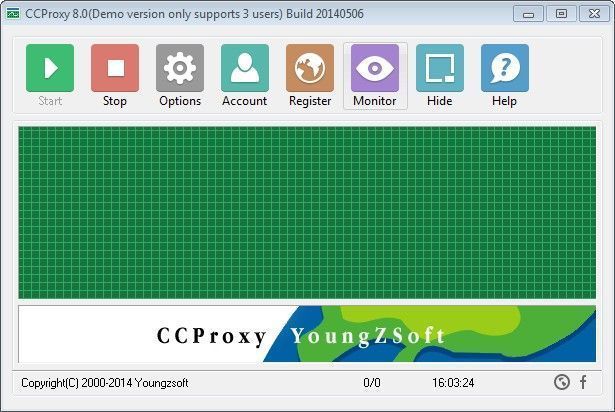
If you want to know more about server configurations, please read "Server Configuration".
If you get problem in launch CCProxy, please refer to "CCProxy Start Problem".
Step 4 - Add client's IP into CCProxy
- Choose one computer in the LAN that needs to access the Internet. Suppose the IP address of the computer is 192.168.0.2.
- Open CCProxy main window, click "Account" button, then popup "Account Manager" dialog box.
- Select "Permit Only" in "Permit Category" and select "IP Address" in "Auth Type" (Figure 4).
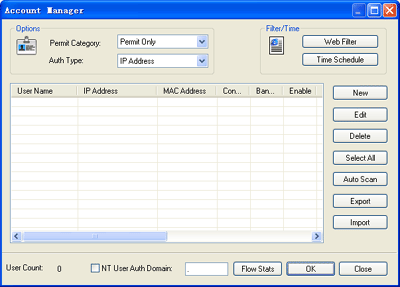
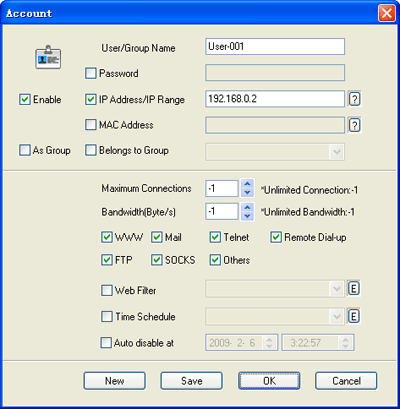
- Click "New" button, fill "192.168.0.2" in the "IP Address/IP Range", click "Save" and "OK" button (Figure 5).
If you want to know more about account management, please read "Account Manager".
Step 5 - Configure IE at client
- Go to client computer and open IE window.
- Open "Tools" menu, select "Internet Options" and open the "Internet Options" dialog box.
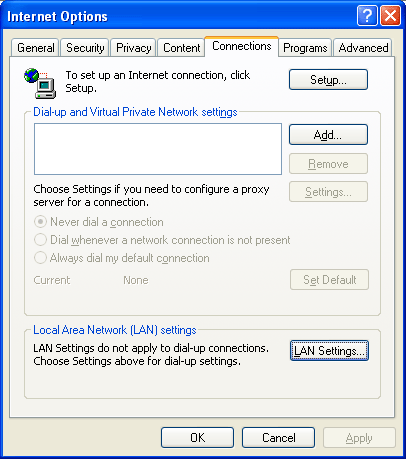
- Select "Connections" tab, click "LAN Settings" button and open the "Local Area Network (LAN) Settings" dialog box (Figure 6).
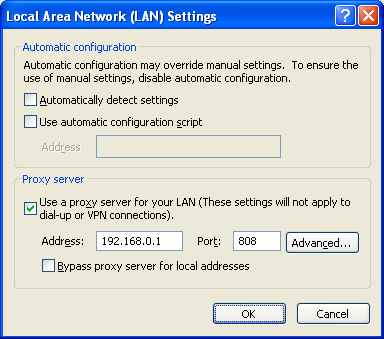
- Check "Use a proxy server for your LAN", Fill "192.168.0.1" in "Address" and "808" in "Port" (Figure 7).
- Click "OK" button in "Local Area Network (LAN) Settings" and "Internet Options" dialog boxes.
- Now you can browser Internet web sites in IE at the client.
If you want to know more about client configurations, please read "Client Configuration".
If you get problem in using CCProxy, please read "User Manual" and "FAQs".
Related:
